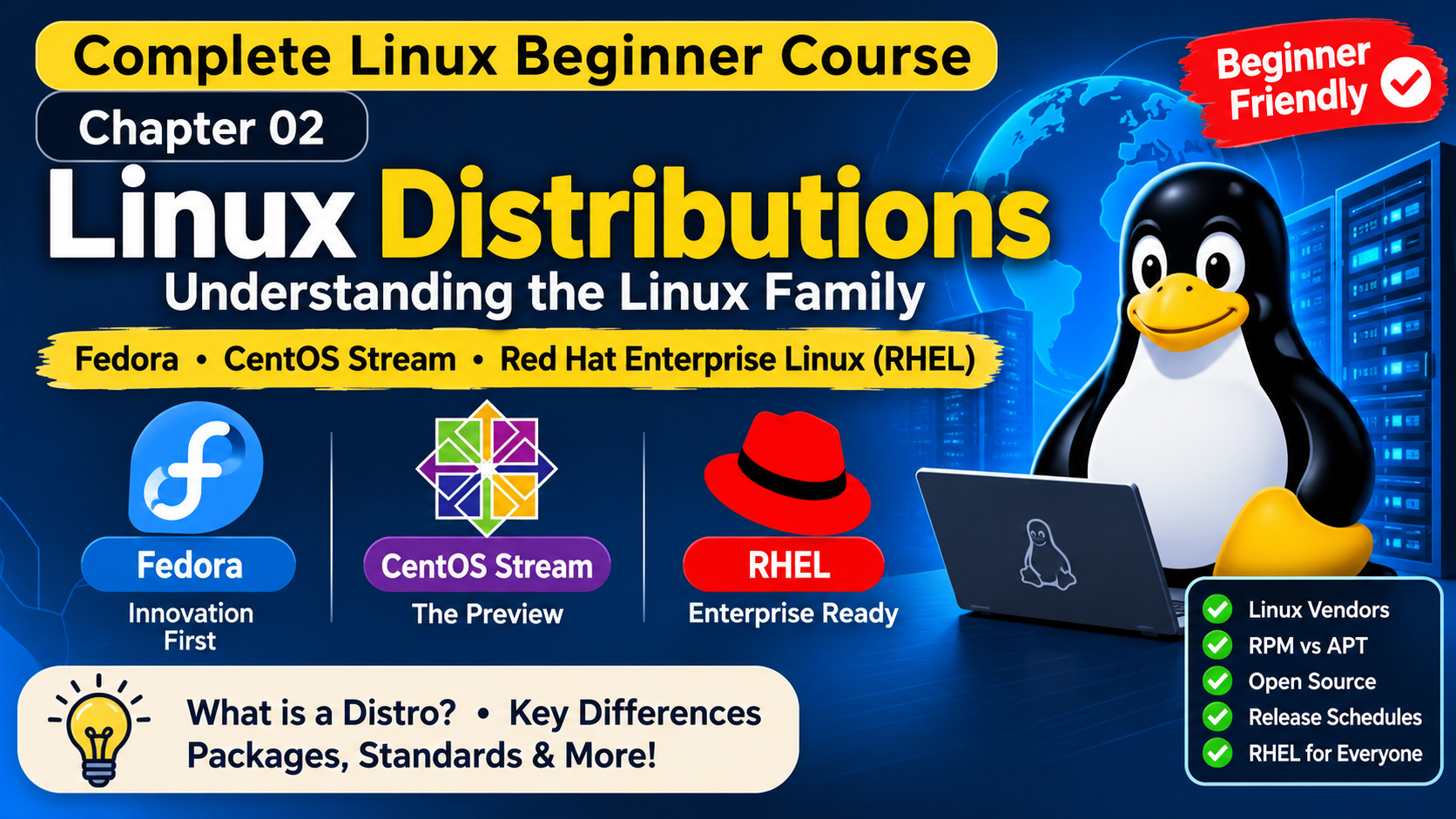
COMPLETE LINUX BEGINNER COURSE - CHAPTER 01
Linux Fundamentals + Fedora + CentOS Stream + Red Hat Enterprise Linux (RHEL)
Absolute Beginner
We will understand Linux from the beginning, why it exists, how it works, who developed it, what its components are, and how Fedora, CentOS Stream and Red Hat Enterprise Linux are connected.
We will also learn the technical terms, their full forms, practical examples and basic commands.
PART 1 - UNDERSTANDING COMPUTERS BEFORE LINUX
1. What is a Computer?
A computer is an electronic machine that accepts information, processes it, stores it and produces results.
For example, when you open a browser and search for something:
- You enter information.
- The computer processes your request.
- It communicates with the internet.
- It receives information.
- It displays the result.
A computer has two main components.
Computer System
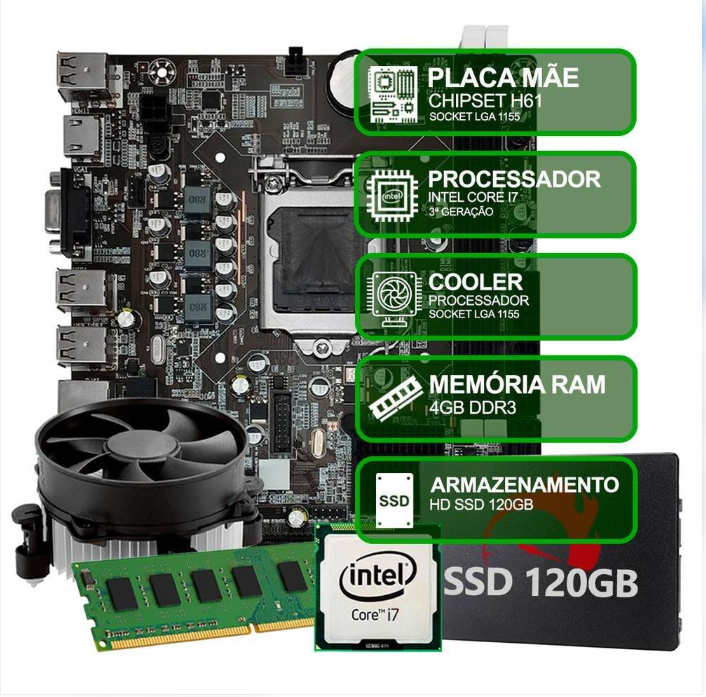
1. Hardware
Physical components you can touch.
- CPU
- RAM
- Hard Disk / SSD
- Keyboard
- Monitor
2. Software
Programs and instructions that run on hardware.
- Operating System
- Browser
- Applications
- Database software
Let's understand some important hardware terms.
| Term | Full form | Meaning |
|---|---|---|
| CPU | Central Processing Unit | Processes instructions; the main processor |
| RAM | Random Access Memory | Temporary working memory |
| HDD | Hard Disk Drive | Stores data permanently using magnetic disks |
| SSD | Solid State Drive | Stores data using flash memory |
| GPU | Graphics Processing Unit | Processes graphics and parallel workloads |
| NIC | Network Interface Card | Connects a computer to a network |
Example: When you open Chrome, the application is stored on your SSD. When you run it, some of its data is loaded into RAM, and the CPU executes its instructions.
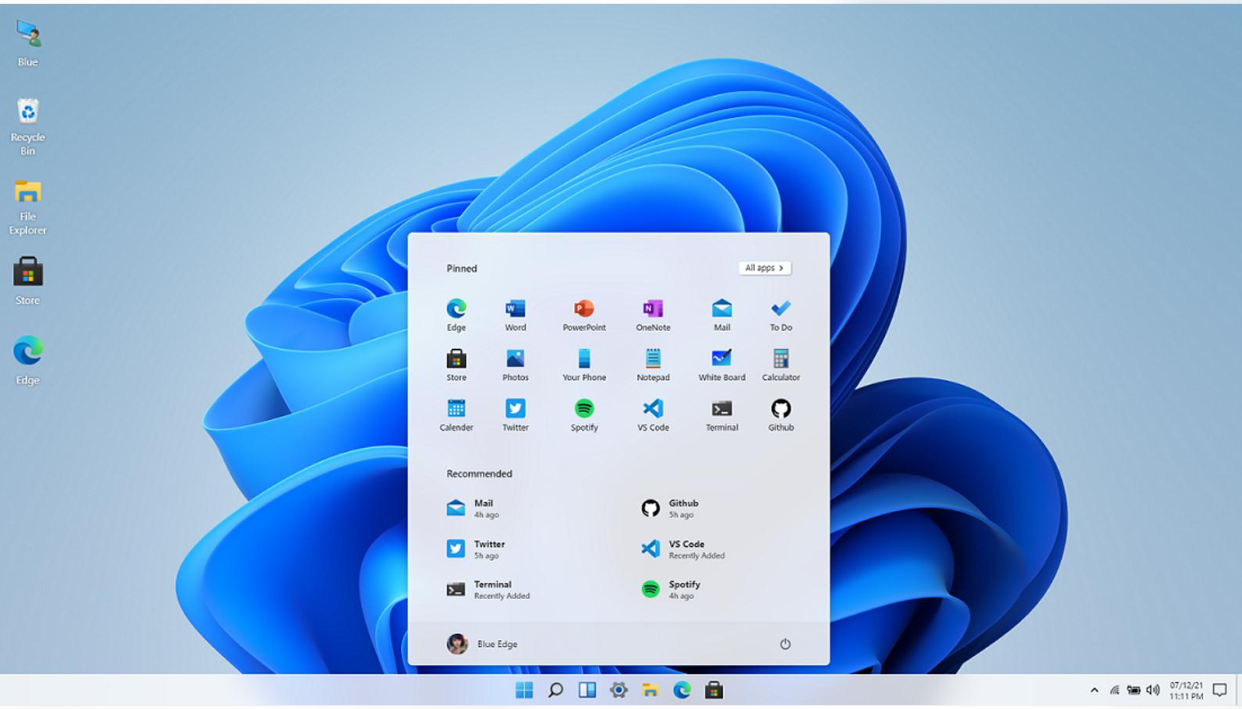
2. What is an Operating System (OS)?
OS stands for Operating System.
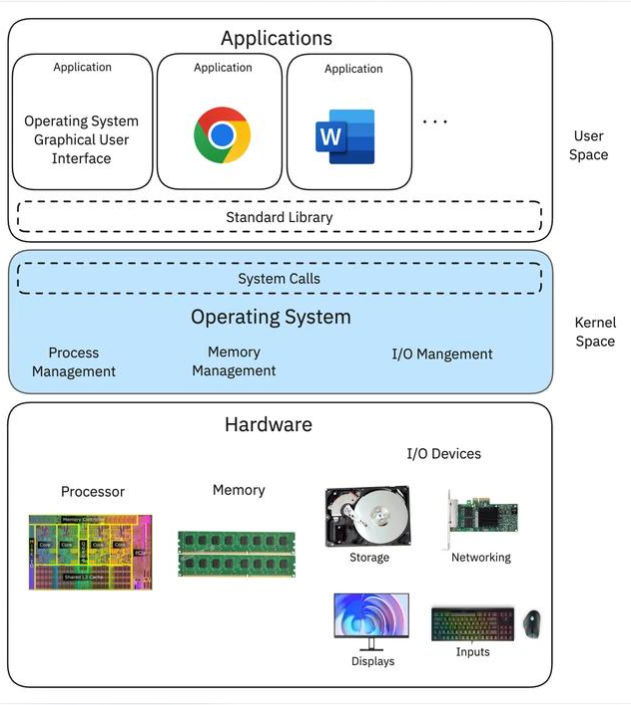
An operating system is system software that manages computer hardware and provides an environment for applications to run.
Without an operating system, using a computer for normal everyday tasks would be extremely difficult.
Think of an operating system as a manager between the user, applications and computer hardware.
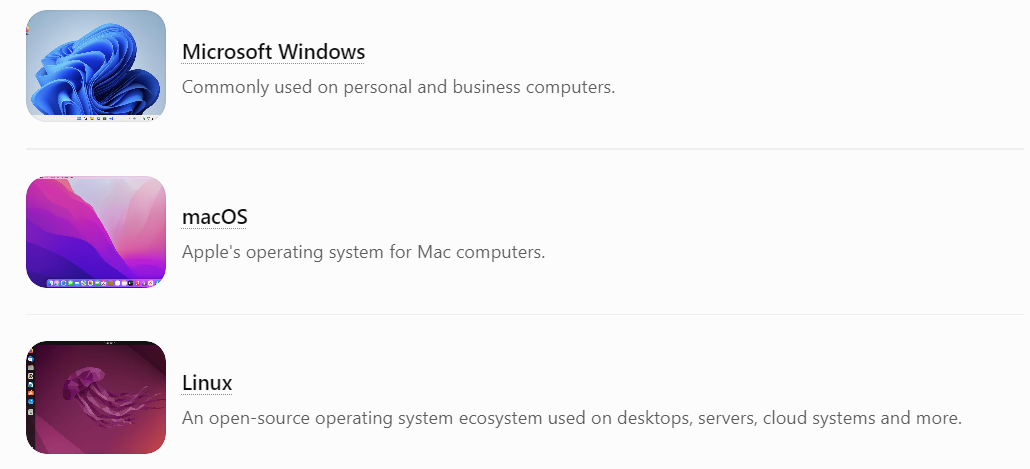
Examples of Operating Systems
Microsoft Windows
Commonly used on personal and business computers.
macOS
Apple's operating system for Mac computers.
Linux
An open-source operating system ecosystem used on desktops, servers, cloud systems and more.
What does an Operating System do?
- Manages CPU and RAM.
- Manages files and folders.
- Controls hardware devices.
- Manages running applications.
- Provides security and user permissions.
- Handles network connections.
Simple example:
You open Microsoft Word.
The operating system:
- Loads Word into memory.
- Provides CPU resources.
- Manages the keyboard and mouse.
- Helps save your document to storage.
That is the role of an operating system.
PART 2 - WHAT IS LINUX?
3. What exactly is Linux?
Linux is an open-source operating system ecosystem built around the Linux Kernel.
But technically, Linux originally refers to the Linux Kernel, not one complete operating system.
This distinction is important.
Let's understand its history.
Who created Linux?
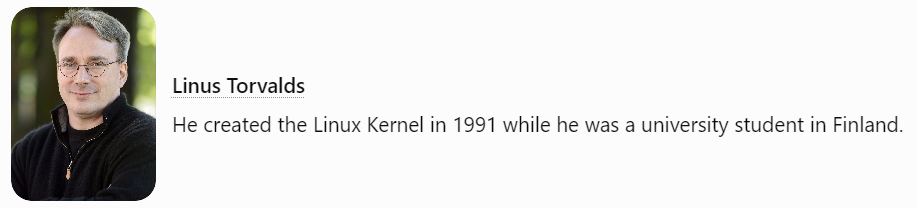
Linus Torvalds
He created the Linux Kernel in 1991 while he was a university student in Finland.
He initially developed Linux as a personal project. Over time, developers from around the world contributed to it.
Today, Linux is used in:
- Servers
- Cloud computing
- Supercomputers
- Android devices (which use the Linux kernel)
- Networking equipment
- Embedded systems
- Enterprise infrastructure
What does Open Source mean?
Open Source means the software's source code is available under a license that permits people to inspect, use, modify and redistribute it according to the license conditions.
Imagine someone creates a recipe and shares it publicly.
You can:
- Read the recipe.
- Understand how it works.
- Improve it.
- Share your improvements.
Open-source software works similarly, although software licenses define the exact permissions and obligations.
Important: Open Source does not automatically mean that every service, support option or product based on that software is free.
4. What is a Kernel?
The Kernel is the central component of an operating system.
It manages communication between software and computer hardware.
Think about a restaurant:
- Customer = Application
- Restaurant manager = Kernel
- Kitchen equipment = Hardware
The customer makes a request. The manager coordinates with the kitchen and ensures resources are available.
Similarly, applications request resources, and the kernel manages them.
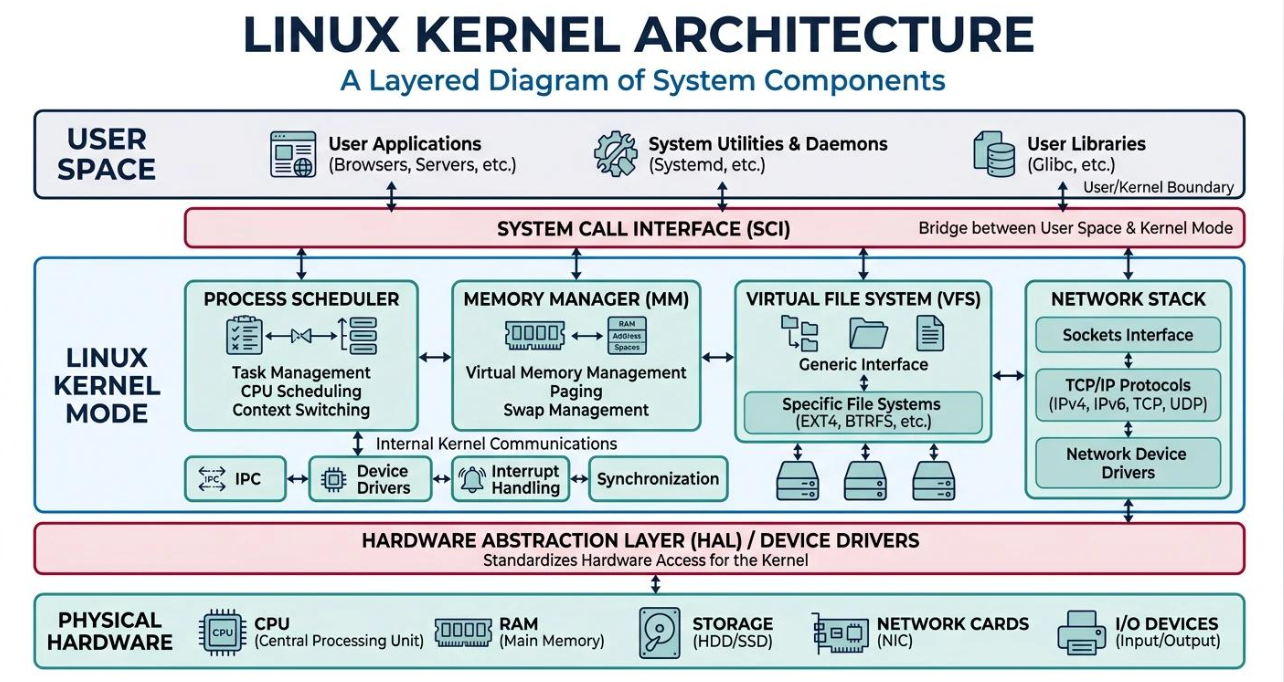
Five major responsibilities of the Kernel
| Responsibility | Beginner explanation |
|---|---|
| Process Management | Manages running programs |
| Memory Management | Manages RAM |
| Device Management | Communicates with hardware |
| File System Management | Handles files and storage access |
| Security | Enforces permissions and isolation |
What is a Process?
A process is a program that is currently running.
Example:
- You open Chrome – a process starts.
- You open a terminal – another process starts.
- You run Python – another process starts.
Linux manages these processes.
What is RAM?
RAM is temporary memory used by running applications.
For example, when you open multiple applications, Linux manages how much memory each process uses.
What is a File System?
A file system is the method used by an operating system to organize and store files.
Examples include:
- ext4
- XFS
- Btrfs
These are different Linux-supported file systems.
PART 3 - WHAT IS A LINUX DISTRIBUTION?
5. Linux Distribution (Distro)
A Linux Distribution is a complete operating system assembled around the Linux Kernel.
The kernel alone is not sufficient for everyday computer usage.
We also need:
- System utilities
- Software libraries
- Applications
- Package management tools
- Configuration files
- Installation tools
All these components together form a Linux Distribution.
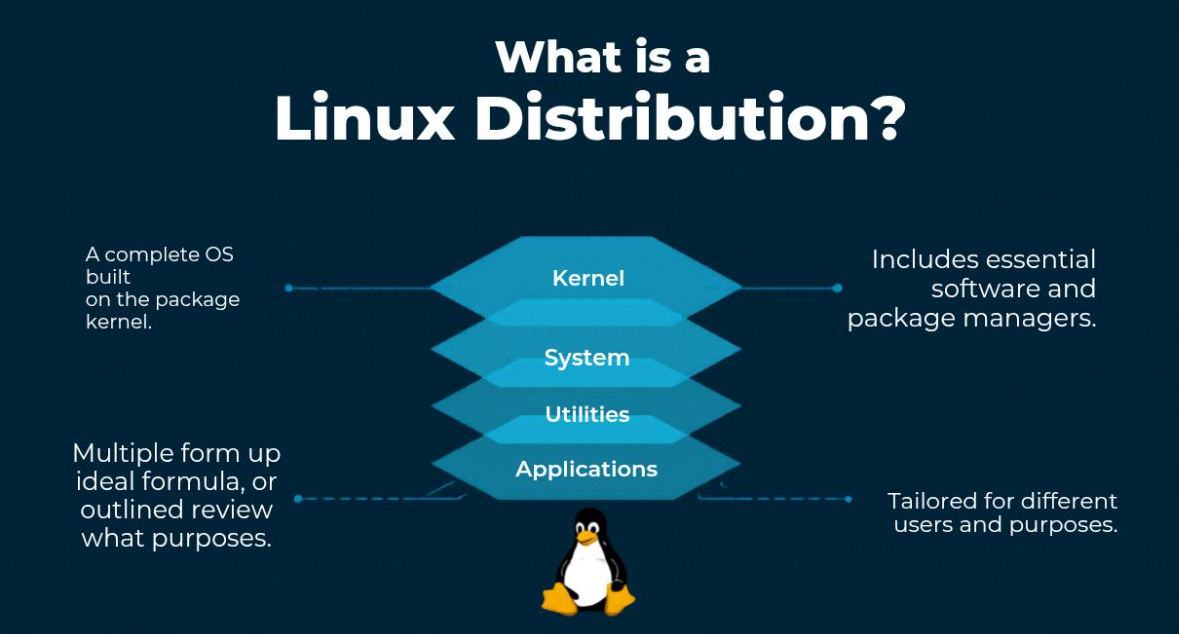
Understand with a simple example
Imagine you are constructing a house.
| House example | Linux example |
|---|---|
| Foundation | Linux Kernel |
| Electrical system | System services |
| Plumbing | System utilities |
| Furniture | Applications |
| Complete house | Linux Distribution |
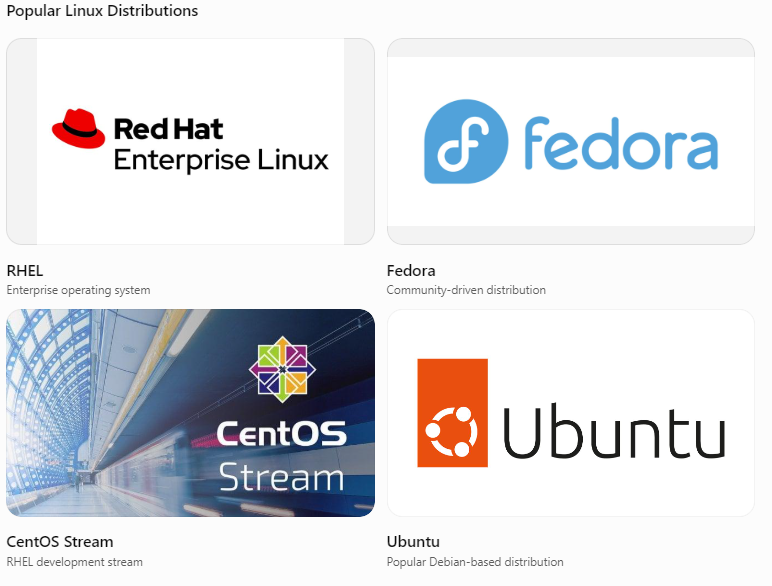
Popular Linux Distributions
RHEL
Enterprise operating system
Fedora
Community-driven distribution
CentOS Stream
RHEL development stream
Ubuntu
Popular Debian-based distribution
Why do different distributions exist?
Because different users have different requirements.
For example:
- Beginners need an easy-to-use operating system.
- Developers need programming tools.
- Companies need predictable updates and support.
- Server administrators need reliable infrastructure.
Different Linux distributions provide different approaches to these requirements.
PART 4 -THE THREE IMPORTANT RED HAT DISTRIBUTIONS
Now we reach the most important part of your original topic.
6. Understanding Red Hat

Red Hat
Red Hat is a technology company known for enterprise open-source software, Linux, cloud and infrastructure solutions.
Red Hat provides enterprise software and services to organizations.
One of its most important products is RHEL.
However, to understand RHEL properly, we should first understand its relationship with Fedora and CentOS Stream.
7. Fedora - The Innovation Platform
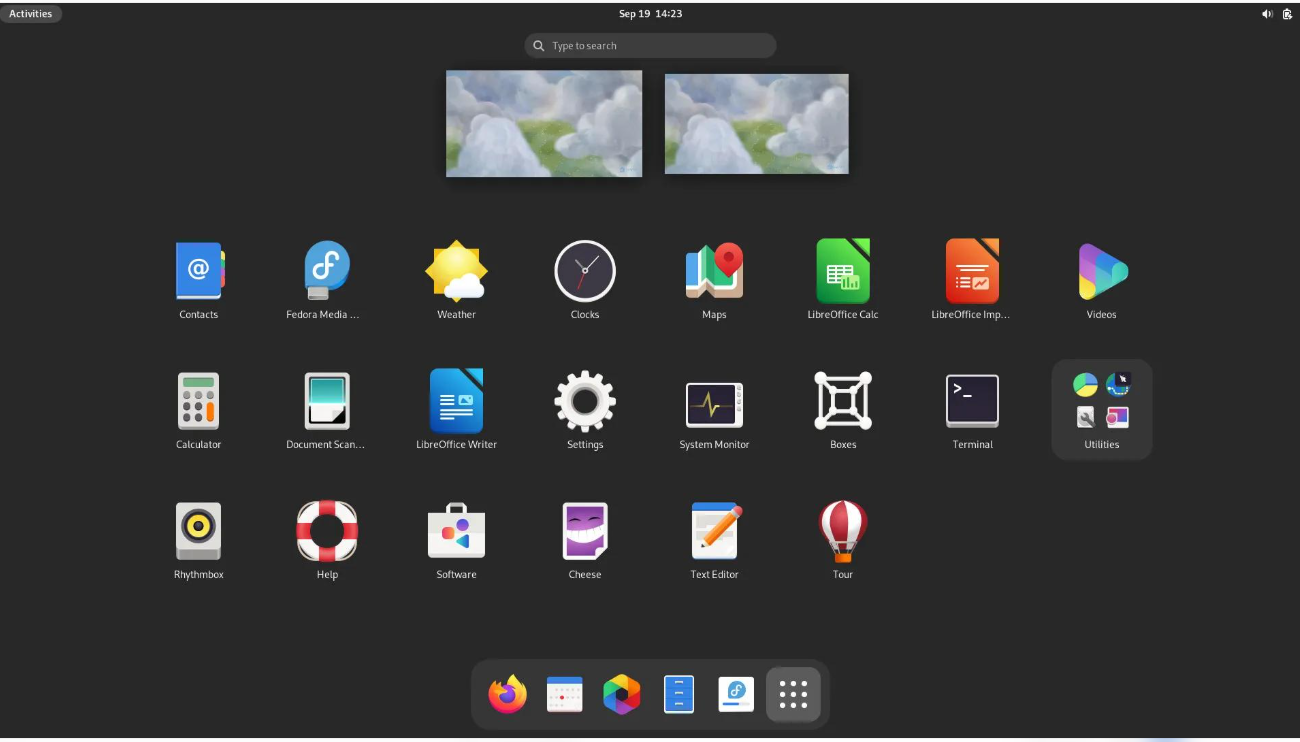
What is Fedora?
Fedora is a community-driven Linux distribution sponsored by Red Hat.
It is a place where new technologies, features and improvements are developed and introduced.
Think of Fedora as a platform for innovation.
Why does Fedora exist?
Technology changes continuously.
Developers introduce:
- New Linux Kernel versions.
- New programming tools.
- New software features.
- Updated system technologies.
Fedora helps bring these technologies to users and developers.
Who uses Fedora?
- Software developers.
- Linux enthusiasts.
- Students learning Linux.
- People who want newer technologies.
- Contributors to open-source projects.
Example
Suppose developers create a new Linux technology.
They can develop and test it within the Fedora ecosystem before it becomes part of the enterprise development process.
Important terms
| Term | Meaning |
|---|---|
| Upstream | A project or development source from which other work is derived |
| Innovation | Developing new ideas and technologies |
| Community-driven | Developed with contributions from a community |
| Cutting-edge | Using relatively new technologies |
Remember: Fedora is generally the first major distribution in the Red Hat ecosystem to introduce many new technologies.
8. CentOS Stream - The Development Preview
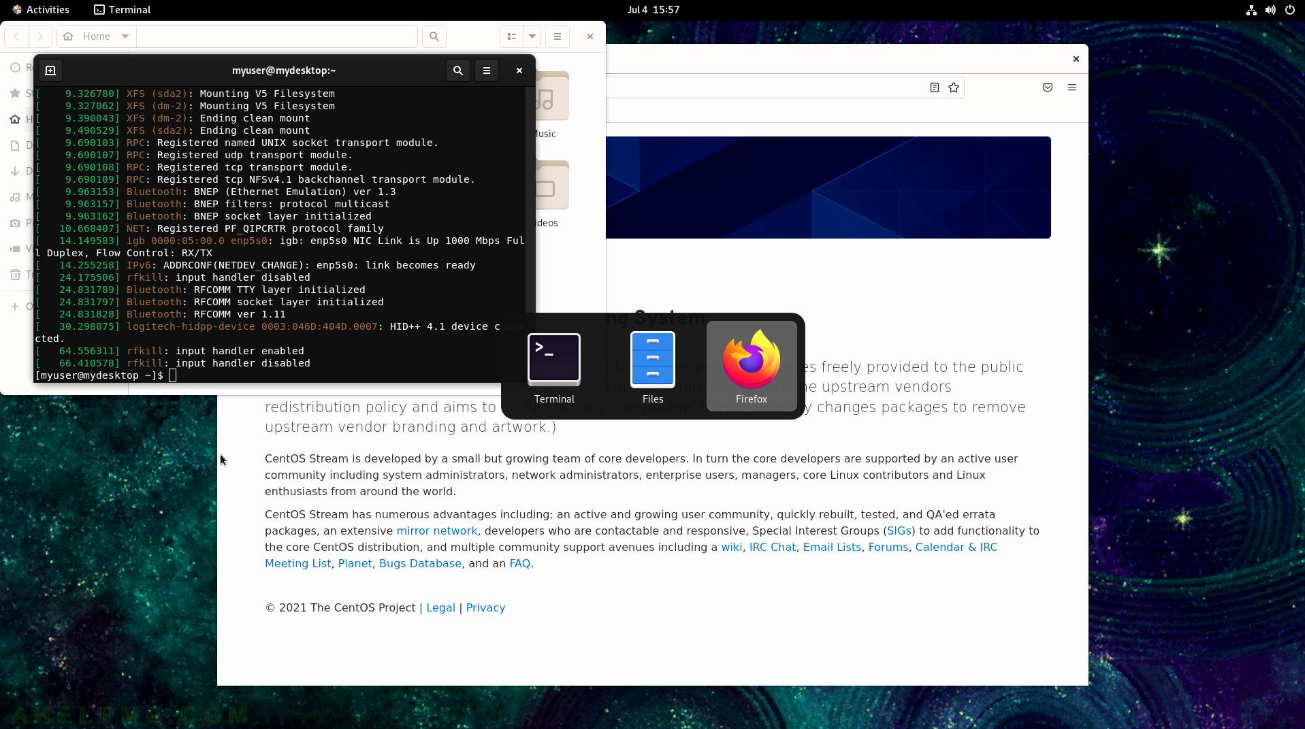
What is CentOS Stream?
CentOS Stream is a continuously delivered Linux distribution that tracks development for upcoming RHEL minor releases.
It is positioned between Fedora and RHEL in the Red Hat development ecosystem.
First understand: What is a Release?
A release is a particular version of software made available to users.
For example:
- RHEL 9.5
- RHEL 9.6
- RHEL 10.0
What is a Rolling Release?
A rolling release is a software delivery model where updates are delivered continuously rather than waiting for a completely new major version.
CentOS Stream follows a continuously updated model.
Why does CentOS Stream exist?
It allows developers and partners to see what is being developed for upcoming RHEL releases.
They can:
- Test software.
- Identify bugs.
- Check compatibility.
- Provide feedback.
- Contribute improvements.
Who uses CentOS Stream?
- Developers
- Software vendors
- Technology partners
- Linux contributors
- People interested in upcoming RHEL changes
Example
Imagine Red Hat is preparing the next minor release of RHEL.
Developers can work with the corresponding development changes through CentOS Stream before those changes are incorporated into the released RHEL version.
Remember: CentOS Stream is not simply an unstable version of RHEL. It is an important development platform in the RHEL ecosystem.
9. RHEL - Red Hat Enterprise Linux
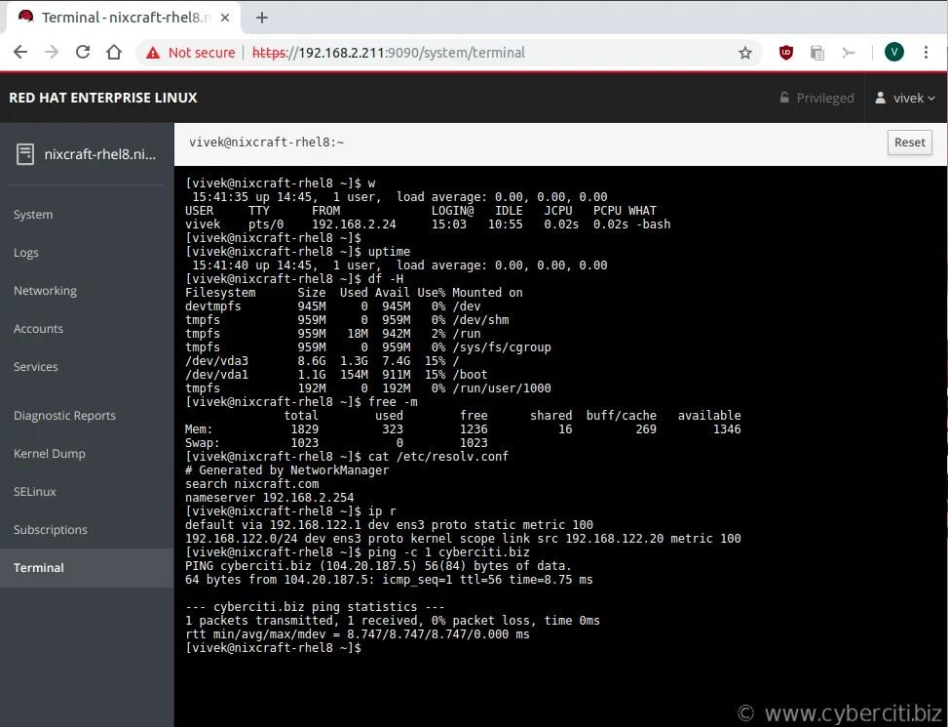
RHEL stands for Red Hat Enterprise Linux.
It is an enterprise-grade Linux distribution developed by Red Hat.
Let's break the name down:
- Red Hat = Company.
- Enterprise = Business and organizational use.
- Linux = Operating system ecosystem.
Why do companies use RHEL?
Imagine a bank has an application that processes financial transactions.
It needs:
- Reliable server infrastructure.
- Strong security.
- Controlled software updates.
- Long-term maintenance.
- Technical support.
If the operating system frequently introduces unexpected changes, it could affect business applications.
RHEL is designed to provide a predictable and supported enterprise platform.
Where is RHEL used?
| Industry | Example usage |
|---|---|
| Banking | Banking applications and transaction systems |
| Healthcare | Hospital information systems |
| IT | Enterprise applications |
| E-commerce | Online shopping platforms |
| Telecom | Network infrastructure |
| Cloud | Cloud-based applications |
| Government | Enterprise IT infrastructure |
Who uses RHEL?
- System Administrators
- Linux Administrators
- DevOps Engineers
- Cloud Engineers
- Database Administrators
- Infrastructure Engineers
- Enterprise Software Developers
Fedora vs CentOS Stream vs RHEL
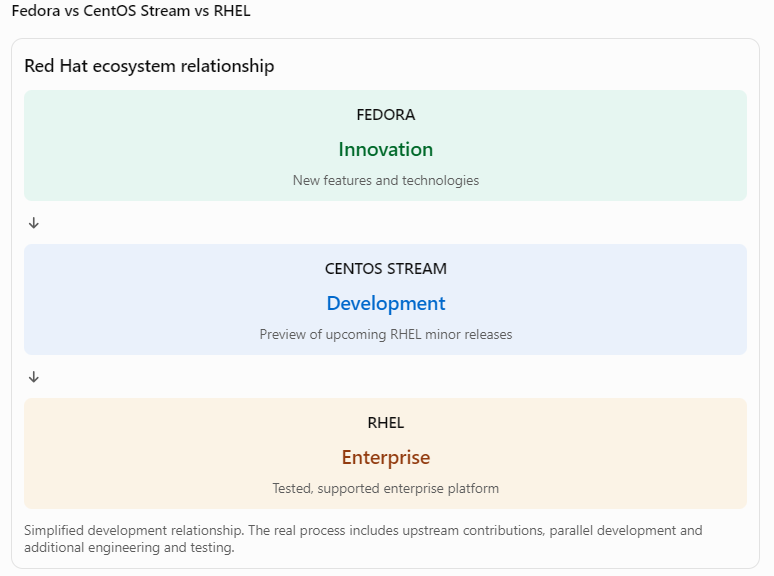
Simplified development relationship. The real process includes upstream contributions, parallel development and additional engineering and testing.
| Comparison | Fedora | CentOS Stream | RHEL |
|---|---|---|---|
| Purpose | Innovation | Development preview | Enterprise usage |
| Development position | Upstream | Midstream | Downstream |
| Updates | Frequent | Continuous | Controlled |
| Stability focus | New technologies | Upcoming RHEL changes | Enterprise reliability |
| Primary users | Developers | Developers and partners | Organizations |
| Commercial support | Community | Community | Red Hat subscription options |
One-line memory trick:
- Fedora = What's new?
- CentOS Stream = What's coming next?
- RHEL = What's ready for enterprise use?
PART 5 - HOW LINUX SOFTWARE IS INSTALLED
10. What is Package Management?
Imagine you want to install Python on a Linux computer.
How does Linux know:
- Which files to download?
- Where to install them?
- Which other software is required?
- How to update them?
- How to uninstall them?
This is handled by a package management system.
What is a Package?
A package is a collection of software files and information required to install and manage a program.
For example, a Python package may contain program files, configuration files and installation information.
What is a Package Manager?
A package manager is a tool that installs, updates, removes and manages software packages.
There are different package management systems in Linux.
11. RPM - RPM Package Manager
RPM stands for RPM Package Manager.
It is used in RHEL, Fedora and CentOS Stream.
RPM package files have the extension:
.rpm
For example:
python3-3.x.rpm
The package contains the files and information required for installing the software.
Basic RPM commands
# Install a package
sudo rpm -ivh package.rpm

# Upgrade a package
sudo rpm -Uvh package.rpm

# Remove a package
sudo rpm -e package-name

# List installed packages
rpm -qa
Understand the commands:
| Command | Meaning |
|---|---|
rpm |
RPM package management |
-i |
Install |
-v |
Verbose output |
-h |
Show progress |
-U |
Upgrade |
-e |
Erase |
-qa |
Query all installed packages |
12. What are DNF and YUM?
These are higher-level package management tools used in the Red Hat ecosystem.
DNF: Dandified YUM.
YUM: Yellowdog Updater, Modified.
They help install and manage packages and automatically resolve dependencies.
For example:
# Install a web server
sudo dnf install httpd

# Update packages
sudo dnf update

# Remove a package
sudo dnf remove httpd

# Search for a package
dnf search python

# List installed packages
dnf list installed
What is httpd?
It is the Apache HTTP Server package, used to host websites and serve web content.
Important difference:
- RPM = Package format and low-level package management tool.
- DNF = Higher-level package manager that handles dependencies and uses RPM underneath.
13. What are APT and DPKG?
Ubuntu and Debian use a different package ecosystem.
APT: Advanced Package Tool.
DPKG: Debian Package Manager.
Their package files usually have the .deb extension.
Example:
# Install software
sudo apt install apache2

# Update package information
sudo apt update

# Upgrade installed packages
sudo apt upgrade

# Remove software
sudo apt remove apache2
RPM vs DEB
| Feature | Red Hat family | Debian family |
|---|---|---|
| Package format | RPM | DEB |
| Extension | .rpm |
.deb |
| Package tools | DNF / YUM / RPM | APT / DPKG |
| Distributions | RHEL, Fedora, CentOS Stream | Ubuntu, Debian |
PART 6 - HOW WE INTERACT WITH LINUX
14. What is GUI?
GUI stands for Graphical User Interface.
It means interacting with a computer through graphical elements.
For example:
- Icons
- Windows
- Buttons
- Menus
- Mouse
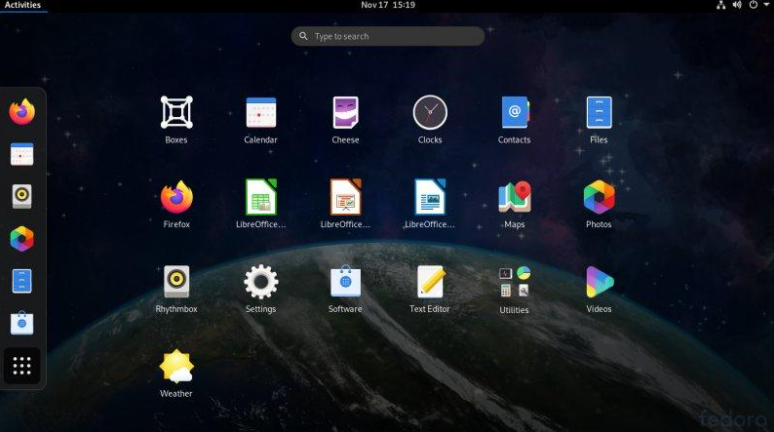
A beginner can easily use a GUI without memorizing many commands.
15. What is CLI?
CLI stands for Command Line Interface.
It allows you to interact with Linux by entering text commands.
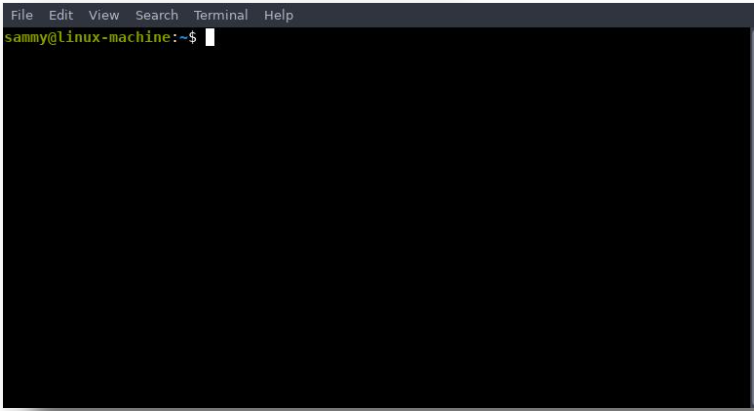
For example:
pwd
ls
whoami
date
| Command | Meaning |
|---|---|
pwd |
Shows current directory |
ls |
Lists files and directories |
whoami |
Shows current logged-in user |
date |
Shows current system date and time |
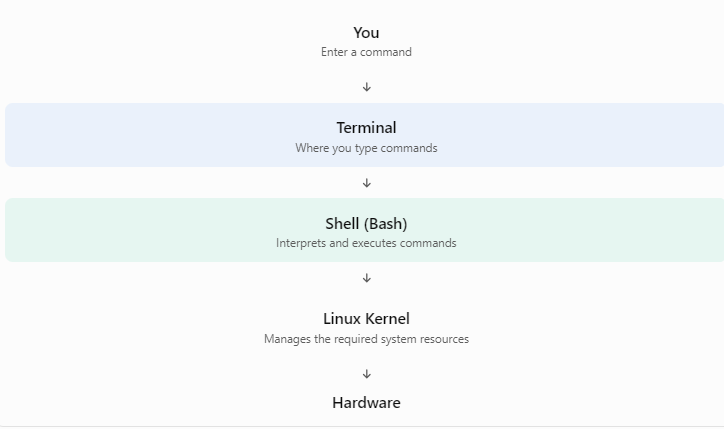
What is a Terminal?
A terminal is an application through which you can interact with a command-line shell.
What is a Shell?
A shell is a program that accepts commands, interprets them and helps execute them.
One popular Linux shell is Bash.
Bash = Bourne Again Shell.
Understand the relationship:
What is Headless Linux?
Headless means Linux is running without a graphical desktop interface.
Many production servers use headless Linux because they don't need a monitor, mouse or graphical desktop for normal operations.
Administrators connect to such servers remotely using SSH.
SSH = Secure Shell.
It provides an encrypted connection to another computer.
PART 7 - LINUX FILE AND DIRECTORY STRUCTURE
16. What is a Directory?
A directory is simply a folder used to organize files.
For example, on Windows you might have:
C:\Users\Abcd\Documents
Linux organizes its files differently.
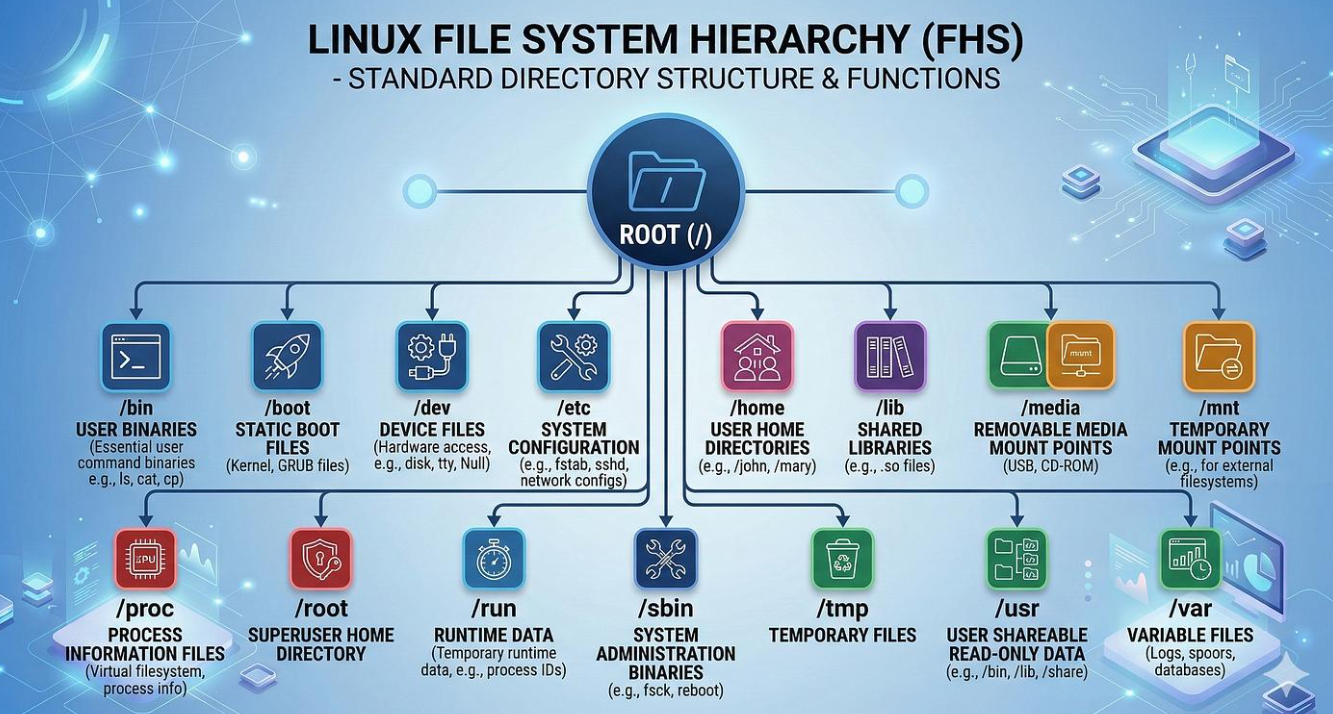
Linux uses a single directory hierarchy that starts at /, called the root directory.
What is FHS?
FHS stands for Filesystem Hierarchy Standard.
It describes the conventional directory structure used by Linux systems.
Important Linux directories
| Directory | Purpose |
|---|---|
/ |
Root of the entire filesystem |
/home |
Personal directories of normal users |
/root |
Home directory of the root administrator |
/etc |
System configuration files |
/var |
Variable data such as logs |
/var/log |
System and application logs |
/usr |
Applications and shared resources |
/bin |
Essential user commands |
/sbin |
Essential system administration commands |
/tmp |
Temporary files |
/boot |
Boot-related files |
/dev |
Device files |
/proc |
Virtual filesystem providing process and kernel information |
/mnt |
Common temporary mount point |
/opt |
Optional application software |
Practical example
Suppose you want to check Linux system logs.
You can use:
cd /var/log
ls
What happens?
cdmeans change directory./var/logis the directory you want to enter.lsdisplays its contents.
You may see log files such as messages, secure or other application-specific logs, depending on your distribution and configuration.
PART 8 - WHY RHEL IS IMPORTANT FOR ENTERPRISES
17. What is an Enterprise Environment?
Enterprise means a large organization or business environment.
Examples:
- Banks
- Hospitals
- IT companies
- Telecom companies
- Government organizations
These organizations run applications that need to work reliably.
For example, an organization may have:
- Application servers
- Database servers
- Web servers
- File servers
All these servers need an operating system.
RHEL is one option for running such enterprise infrastructure.
18. What is Stability?
Stability means the system behaves reliably and does not unexpectedly fail or change in ways that disrupt workloads.
19. What is Security?
Security means protecting the operating system, applications and information from unauthorized access, misuse and attacks.
RHEL provides security-related capabilities such as:
- SELinux
- User permissions
- Firewall tools
- Security updates
- System auditing
SELinux = Security-Enhanced Linux.
It provides additional access-control mechanisms to restrict what applications and processes can do.
20. What is Predictability?
Predictability means organizations can plan updates, maintenance and upgrades without unexpected changes.
For example, if a company knows when a major operating system release is approaching end of support, it can plan its upgrade accordingly.
What is a Major Release?
A major release is a significant new version of an operating system.
Examples:
- RHEL 8
- RHEL 9
- RHEL 10
What is a Minor Release?
A minor release is a smaller release within a major version.
Examples:
- RHEL 9.4
- RHEL 9.5
- RHEL 9.6
What is QA?
QA stands for Quality Assurance.
It means testing software to identify problems and ensure it meets expected quality standards.
Before software becomes part of an enterprise release, it goes through engineering and testing processes.
21. What is Leapp?
Leapp is a tool used for supported in-place upgrades of RHEL.
Example:
Suppose your server is running RHEL 8 and you want to upgrade to RHEL 9.
Leapp can help assess the existing system, identify potential upgrade blockers and perform the supported upgrade process.
In-place upgrade: Upgrading the existing operating system installation instead of completely reinstalling it.
Important: Not every upgrade path is supported. System preparation, compatibility checks and backups are necessary.
22. RHEL Support Lifecycle
RHEL provides different support phases.
| Phase | What it means |
|---|---|
| Full Support | Full maintenance phase with bug fixes, security updates and selected enhancements |
| Maintenance Support | Primarily maintenance and eligible security fixes |
| Extended Update Support | Optional additional security maintenance for eligible releases |
The traditional RHEL major-release lifecycle has commonly been described as approximately five years of Full Support followed by five years of Maintenance Support. Exact dates and entitlements depend on the RHEL version and Red Hat policy.
What is a Subscription?
A subscription is a service agreement that gives customers access to specified Red Hat products, updates, support and other entitlements.
RHEL is available through different subscription options.
There is also a no-cost Red Hat Developer Subscription for Individuals, subject to its current terms.
PART 9 - OTHER IMPORTANT LINUX CONCEPTS
These concepts will help you understand Linux administration and prepare for practical work.
23. What is a Server?
A server is a computer or software system that provides services or resources to other computers.
Example:
When you open an online shopping website:
- Your browser sends a request.
- The web server receives it.
- The application processes the request.
- The server sends the response.
- Your browser displays the website.
Types of Servers
| Server | Purpose |
|---|---|
| Web Server | Hosts and delivers websites |
| Database Server | Stores and manages data |
| Application Server | Runs application logic |
| File Server | Stores and shares files |
| DNS Server | Converts domain names into IP addresses |
24. What is Virtualization?
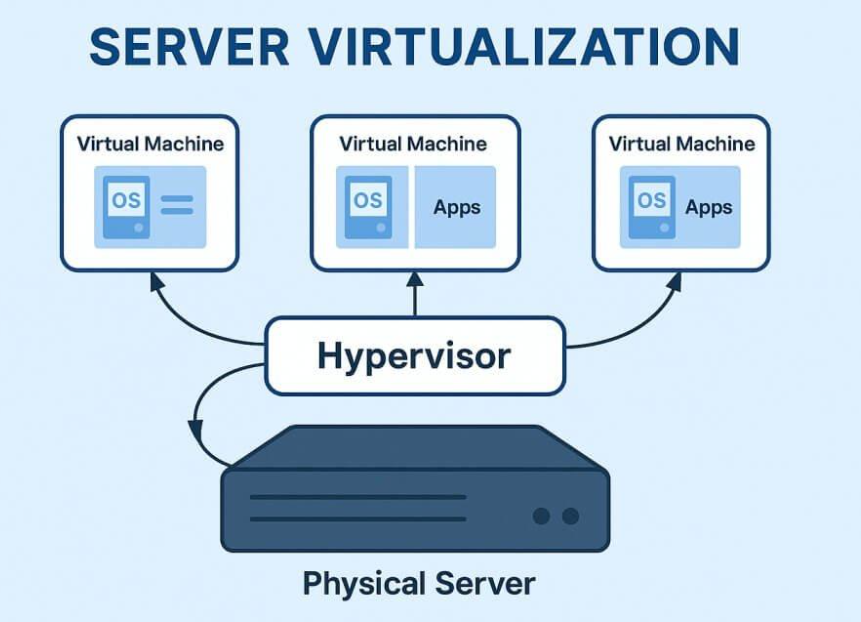
Virtualization means creating virtual versions of computing resources, such as computers, servers and networks.
Imagine you have one physical computer.
You can use virtualization software to run multiple virtual computers inside it.
Each virtual computer is called a Virtual Machine (VM).
Important terms:
- VM = Virtual Machine.
- Hypervisor = Software or platform that creates and manages virtual machines.
- KVM = Kernel-based Virtual Machine.
RHEL supports virtualization using KVM.
25. What is Cloud Computing?
Cloud computing means using computing resources over a network, usually the internet, instead of managing all physical infrastructure yourself.
Examples:
- Virtual servers
- Storage
- Databases
- Networking
- Computing services
Popular cloud providers:
- Amazon Web Services
- Microsoft Azure
- Google Cloud
Linux is widely used in cloud infrastructure.
26. What is a Linux Administrator?
A Linux Administrator is a professional responsible for installing, configuring, maintaining and troubleshooting Linux systems.
Typical responsibilities include:
- Installing Linux operating systems.
- Creating and managing users.
- Managing file permissions.
- Installing software.
- Monitoring CPU and RAM.
- Managing disk space.
- Checking system logs.
- Configuring networks.
- Managing services.
- Troubleshooting system issues.
PART 10 - COMPLETE LINUX GLOSSARY
Here are the important short forms and technical terms from this chapter.
| Short form | Full form / Meaning |
|---|---|
| OS | Operating System |
| CPU | Central Processing Unit |
| RAM | Random Access Memory |
| HDD | Hard Disk Drive |
| SSD | Solid State Drive |
| GPU | Graphics Processing Unit |
| NIC | Network Interface Card |
| CLI | Command Line Interface |
| GUI | Graphical User Interface |
| RHEL | Red Hat Enterprise Linux |
| RPM | RPM Package Manager |
| DNF | Dandified YUM |
| YUM | Yellowdog Updater, Modified |
| APT | Advanced Package Tool |
| DPKG | Debian Package Manager |
| FHS | Filesystem Hierarchy Standard |
| SSH | Secure Shell |
| KVM | Kernel-based Virtual Machine |
| VM | Virtual Machine |
| QA | Quality Assurance |
| SELinux | Security-Enhanced Linux |
| DNS | Domain Name System |
| IP | Internet Protocol |
| HTTP | Hypertext Transfer Protocol |
| HTTPS | Hypertext Transfer Protocol Secure |
| OSI | Open Systems Interconnection |
| FOSS | Free and Open Source Software |
| GPL | GNU General Public License |
| GNU | GNU's Not Unix |
| LVM | Logical Volume Manager |
| NFS | Network File System |
| RAID | Redundant Array of Independent Disks |
| PID | Process Identifier |
| UID | User Identifier |
| GID | Group Identifier |
| API | Application Programming Interface |
PART 11 - PRACTICAL LINUX LAB FOR ABSOLUTE BEGINNERS
Now let's practice Linux.
You don't need to memorize everything immediately. First understand what each command does.
27. Your first Linux commands
Beginner Practical
| Command | What it does |
|---|---|
pwd |
Shows your current location |
ls |
Lists files |
ls -l |
Shows detailed file information |
ls -a |
Shows hidden files |
cd |
Changes directory |
mkdir |
Creates a directory |
touch |
Creates an empty file |
cat |
Displays file content |
cp |
Copies files |
mv |
Moves or renames files |
rm |
Removes files |
whoami |
Displays current username |
date |
Displays system date |
uname -r |
Displays kernel version |
df -h |
Displays disk usage |
free -h |
Displays memory usage |
Try these commands step by step
# Step 1: Check current user
whoami

# Step 2: Check current directory
pwd

# Step 3: Display files
ls

# Step 4: Create a directory
mkdir linux_practice

# Step 5: Enter the directory
cd linux_practice

# Step 6: Create a file
touch myfirstfile.txt

# Step 7: List files
ls

# Step 8: Write content into the file
echo "I am learning Linux" > myfirstfile.txt

# Step 9: Read the file
cat myfirstfile.txt

# Step 10: Check kernel version
uname -r
After executing these commands, you will have created your first directory and file in Linux.
28. Where can you practice Linux?
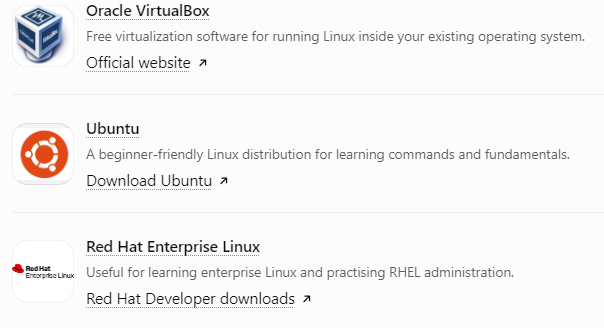
You can install a Linux distribution in a virtual machine on your computer.
Some options:
Oracle VirtualBox
Free virtualization software for running Linux inside your existing operating system.
Ubuntu
A beginner-friendly Linux distribution for learning commands and fundamentals.
Red Hat Enterprise Linux
Useful for learning enterprise Linux and practicing RHEL administration.
PART 12 - TEST YOUR KNOWLEDGE
Try these questions after completing the chapter.
Chapter 01 assessment
0/12 answered
1. Who created the Linux Kernel?
Bill Gates
Linus Torvalds
Steve Jobs
2. What is Linux technically?
A database
A kernel
A web browser
3. What is a Linux Distribution?
Only the kernel
A complete operating system built around the kernel
Only a command-line tool
4. Which distribution focuses on innovation in the Red Hat ecosystem?
RHEL
Fedora
CentOS Stream
5. What is the primary purpose of CentOS Stream?
A preview of upcoming RHEL minor-release development
A Windows replacement
A database server
6. What is RHEL primarily designed for?
Only gaming
Enterprise computing
Only mobile phones
7. What is RPM?
A package format and package management tool
A programming language
A Linux desktop
8. What does DNF do?
Manages software packages and dependencies
Manages computer monitors
Creates users only
9. What does CLI mean?
Computer Linux Installation
Command Line Interface
Central Linux Internet
10. Where are many Linux configuration files stored?
/etc
/home
/tmp
11. What is SSH used for?
Playing videos
Securely connecting to remote systems
Installing RAM
12. What is a virtual machine?
A software-based computer
A physical keyboard
A Linux command
Submit assessment
What comes next in your Linux learning journey?
The important thing is to learn Linux in the correct order. Don't jump directly into advanced administration commands without understanding the fundamentals.
Linux complete learning roadmap
Current chapter
Linux Fundamentals
Operating systems, kernel, distributions, Fedora, CentOS Stream and RHEL.
Linux Architecture
How Linux works internally, kernel architecture, system calls and boot process.
Linux Commands
Basic commands, file management, directories and command-line operations.
File Permissions and Users
Users, groups, ownership, chmod, chown, sudo and root.
Package Management
RPM, DNF, YUM, repositories and software installation.
Process and Service Management
Processes, systemd, systemctl, services and job scheduling.
Storage Management
Disks, partitions, filesystems, mounting and LVM.
Networking
IP addresses, DNS, SSH, ports, firewall and network configuration.
Linux Administration
Logs, monitoring, troubleshooting, security and server maintenance.
Enterprise RHEL Administration
RHEL installation, subscription management, SELinux, upgrades and production server administration.
Note: Before executing any Linux command, always review and understand what the command does, its purpose, and its potential impact. Do not execute commands blindly. If you have any doubts about a command or concept, research it using reliable documentation or search online before proceeding. Always ensure you understand the command before running it.
NB: Don't just memorize the definitions. Understand what happens behind each operation. For example, when you execute dnf install httpd, understand what DNF does, what RPM does, what a dependency is, where the software gets installed and how the service is started.
That is how you move from knowing Linux terminology to actually understanding and working with Linux.
About the author
I'm Archana, pursuing Graduation in Information technology and Management. I'm a fresher with expertise in Python programming. I'm excited to apply my skills in AI/ML learning , Python, Java and web development. Looking forward to collaborating and learning from industry experts.
Comments
Join the discussionNo comments yet. Be the first to comment.